 Links and automatically generated content
1.Creating labels, links and references
You may create a new inactive label using Meta+!
or
You should be careful to put the label at a point where its number
will be correct. When labeling sections, the recommended place is just
after the sectional tag. When labeling single equations (created using
It is possible to create hyperlinks to other documents using Meta+I> or
In a similar fashion, an action may be associated to a piece of text
or graphics using Meta+I* or
(system "shell-command")
evaluates shell-command as a shell command.
Finally, you may directly include other documents inside a given
document using Meta+II or
2.Inserting images
You can include images in the text using the menu
By default, images are displayed at their design sizes and aligned at their bottom lines. Alternative widths, heights and alignment offsets may be specified in the image chooser dialogue window, using TeXmacs notation for lengths.
-
When specifying a new width, but no height at the prompt (or vice versa), the image is resized so as to preserve the aspect ratio. For instance, entering a width of 1par will make the image span over the entire paragraph width and adjust the height proportionally.
You may use w and h as special lengths for the default width and height of the image. For instance, specifying 2w and 2h for the width and the height, the image will be displayed at twice its default size.
-
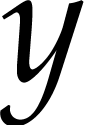
When specifying an alternative alignment, you may use the w and h lengths for the displayed width and height (i.e. w and h no longer stand for the default width and height). For instance, using -0.5h for the
 -offset
will vertically align the image at its center.
-offset
will vertically align the image at its center.
We also included a script to convert
3.Generating a table of contents
It is very easy to generate a table of contents for your document.
Just put your cursor at the place where you want your table of
contents and click on
In order to generate the table of contents, you should be in a mode
where page breaks are visible (select paper for the Screen rendering
option of the Format tab in
4.Compiling a bibliography
Editing files with bibliographic entries
TeXmacs uses the
The built-in editor for
-
When entering authors (inside “Author” or “Editor” fields), use the
name tag for specifying last names (usingInsert →Last name or Shift+F6) For instance, “Albert Einstein” should be entered as “AlbertEinstein ” or as “A.Einstein ”. Special particles such as “von” can be entered usingInsert →Particle . Title suffices such as “Jr.” can be entered similarly usingInsert →Title suffix . -
When entering titles, do not capitalize, except for the first character and names or concepts that always must be. For instance, use “Riemannian geometry” instead of “Riemannian Geometry” and “Differential Galois theory” instead of “Differential Galois Theory”.
Inserting citations and compiling bibliographies
Assuming that you have created a .bib file with your bibliographic references, the mechanism to automatically compile a bibliography is the following:
-
Use
Insert →Link →Citation andInsert →Link →Invisible citation to insert citations, which correspond to entries in your .bib file. -
At the place where your bibliography should be compiled, click on
Insert →Automatic →Bibliography . At the prompt, you should enter a bibtex style (such as plain, alpha, abbrv, etc.) and your .bib file. -
Use
Document →Update →Bibliography in order to compile your bibliography.
Notice that additional BiBTeX styles should be put in the directory ~/.TeXmacs/system/bib.
5.Generating an index
For the generation of an index, you first have to put index entries in
your document using
In the
A complex index entry takes four arguments. The first one is a key how the entry has to be sorted and it must be a “tuple” (created using Meta+I<) whose first component is the main category, the second a subcategory, etc. The second argument of a complex index entry is either blank or “strong”, in which case the page number of your entry will appear in a bold typeface. The third argument is usually blank, but if you create two index entries with the same non-blank third argument, then this will create a “range” of page numbers. The fourth argument, which is again a tuple, is the entry itself.
It is also possible to create an index line without a page number
using “interject” in
6.Compiling a glossary
Glossaries are compiled in a similar way as indexes, but the entries are not sorted. A “regular” glossary entry just contains some text and a page number will be generated for it. An “explained” glossary entry contains a second argument, which explains the notation. A “duplicate” entry may be used to create a page number for the second occurrence of an entry. A glossary line creates an entry without a page number.
7.Multiple extractions
TeXmacs allows users to create multiple bibliographies, tables of contents, indexes, etc. inside the same document. Let us explain how to do this for bibliographies; the procedure is similar for other types of automatically generated content.
First of all, every separate bibliography is identified by a
“name”. The default name of the bibliography is bib.
Using
For instance, to specify that a given citation should appear in a second bibliography with name bib2, you should proceed as follows:
-
Click on
Insert →Link →Alternate →Bibliography and enter bib2 on the prompt. This will insert an emptywith-bib tag into your document, with the cursor inside. -
Inside this
with-bib tag, enter your citation, usingInsert →Link →Citation .
If needed, the
The bibliography bib2 itself should be created in a
similar way: first click on
8.Books and multifile documents
When a document gets really large, you may want to subdivide it into
smaller pieces. This both makes the individual pieces more easily
reusable in other works and it improves the editor's responsiveness.
An entire file can be inserted into another one using
When writing a book, one usually puts the individual chapters in files c1.tm, c2.tm until cn.tm. One next creates one file book.tm for the whole book, in which the files c1.tm, c2.tm until cn.tm are included using the above mechanism. The table of contents, bibliography, etc. are usually put into book.tm.
In order to see cross references to other chapters when editing a
particular chapter ci.tm, one may specify book.tm
as a “master file” for the files c1.tm to
cn.tm using